
Free · No sign-up · Chrome, Safari & Firefox frames · Device frames — iPhone, iPad, MacBook · Transparent PNG · Up to 4× export · 100% client-side
Free Browser Mockup Generator
Wrap any screenshot in a polished Chrome, Safari, Firefox, Arc, macOS, or Windows browser frame — or drop it into an iPhone, iPad, or MacBook device frame. Export a transparent PNG or a high-resolution 4× PNG without leaving your browser. No Figma, no Photoshop, no sign-up. Perfect for Product Hunt launch posts, portfolio case studies, and landing page heroes.
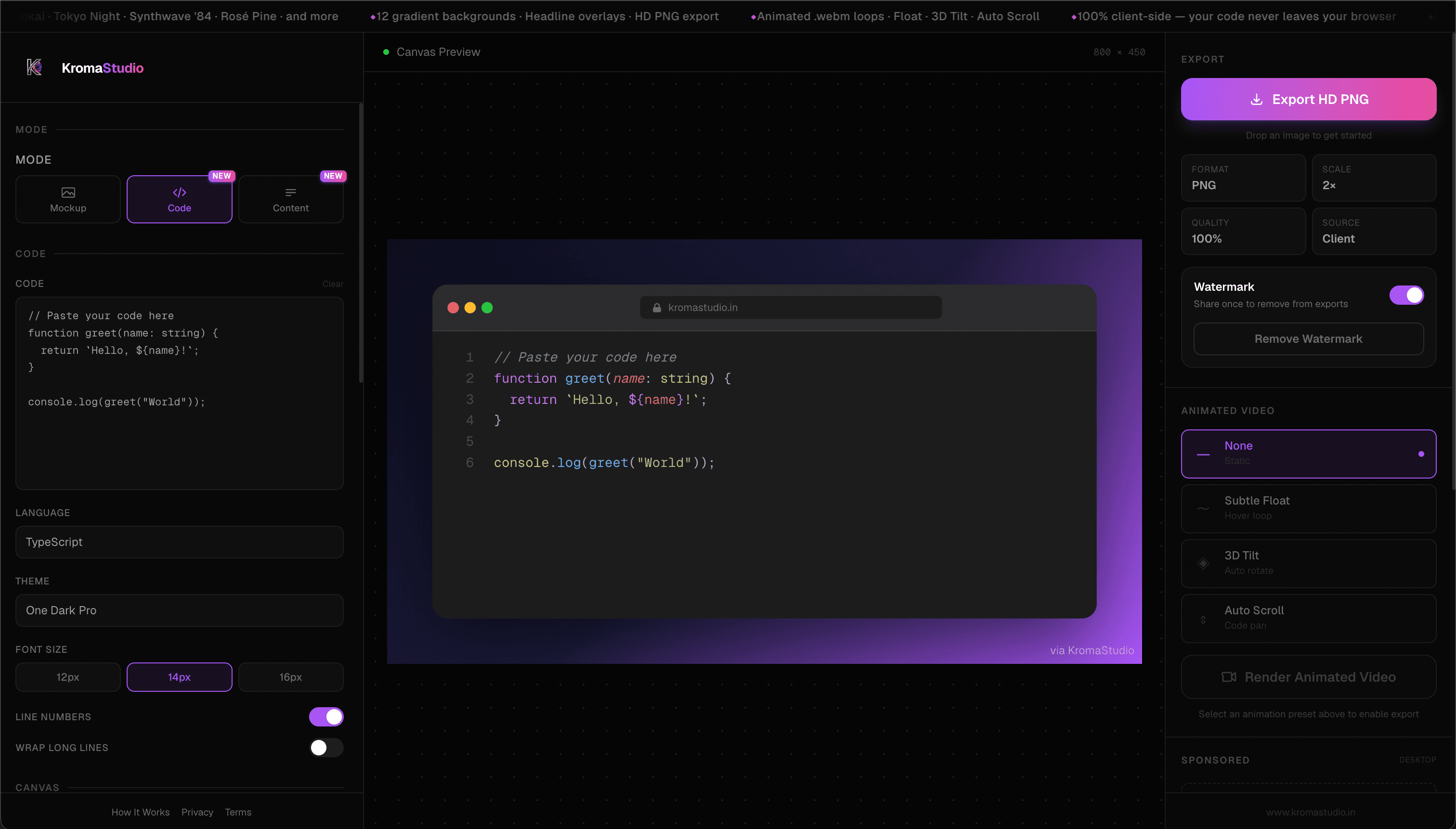
Available browser frame styles
Choose the frame that matches your product and audience. Each style renders at 2× resolution for crisp exports.
- ChromeFamiliar tab strip and address bar — the frame most audiences recognise instantly.
- SafariClean macOS address bar with traffic-light controls — ideal for Apple-first audiences.
- FirefoxRounded tab bar with a privacy-first feel — great for open-source projects.
- ArcCompact, modern sidebar-style chrome — stands out in a feed full of Chrome mockups.
- macOS DarkClassic dark traffic-light + URL pill — polished for dark-mode landing pages.
- macOS LightSame layout in light chrome — pairs cleanly with white or pastel backgrounds.
- WindowsWindows title bar with minimize, maximize, close — authentic for Windows-first products.
- MinimalTraffic-light dots only, no URL bar — clean and distraction-free.
How to create a browser mockup
Step 1: Drop in your screenshot
Open KromaStudio, switch to Image mode, and drag-and-drop your screenshot onto the canvas — or click to browse, or paste from clipboard. Supports PNG, JPG, WebP, and GIF.
Step 2: Pick a frame and customize
Choose from Chrome, Safari, Firefox, Arc, macOS Dark/Light, Windows, or Minimal browser chrome. Adjust padding, corner radius, shadow depth, and aspect ratio. Optionally add a headline overlay for social posts.
Step 3: Export your PNG
Click Export for a high-resolution PNG at 1×, 2×, 3×, or 4× scale — or toggle Transparent PNG to export without any background, ready for Figma or Photoshop compositing. All processing runs in your browser.
Why add a browser frame?
- Context and ClarityA browser frame instantly tells viewers they're looking at a real website or web app — no caption needed. It anchors the screenshot to a product.
- Professional PolishRaw screenshots look unfinished. A clean Chrome or Safari frame with a gradient background turns a plain capture into a launch-ready asset.
- Social Media ReadyPolished browser mockups stand out on Twitter/X, LinkedIn, and Product Hunt — where first impressions determine whether someone clicks through.
- Better PresentationsClients and stakeholders understand your work better with proper browser context. Pitch decks and portfolio case studies read more professionally.
Chrome vs Safari vs macOS — which frame to pick
The frame you pick signals something to your audience before they read a word. Here's how to choose.
When to use Chrome
Default to Chrome. It's the browser most of your audience uses every day, so a Chrome frame reads as 'a real product on a real screen' without anyone consciously noticing the chrome. Best for SaaS dashboards, landing pages, and any launch post targeting a broad audience.
When to use Safari
Choose Safari when your audience skews toward designers, agency people, or Apple-first founders. The rounded toolbar and traffic-light buttons signal a different kind of polish and pair well with light or minimal backgrounds. It also looks sharper on Retina screenshots.
When to use Arc or Firefox
Arc and Firefox frames work as differentiation — pick them when your screenshot is going into a feed full of Chrome mockups and you want the thumbnail to feel slightly distinct. Arc works especially well for developer tools and productivity apps.
Match the theme to the screenshot
A light UI inside a dark Safari frame looks wrong even if your brand is dark-mode. The frame and screenshot theme should agree — otherwise the eye reads the frame as a separate object rather than a window. For SaaS dashboards, light Chrome on a muted gradient usually works best. For developer tools, dark Arc or macOS Dark frames on a deep background look sharper in feeds.
Device frames — iPhone, iPad & MacBook
Beyond browser frames, KromaStudio includes realistic device bezels for iPhone, iPad, and MacBook. Switch between browser and device mode in the sidebar — same tool, same workflow, no extra software needed.
- iPhonePerfect for mobile app screenshots, App Store previews, and iOS launch posts.
- iPadIdeal for tablet UI showcases, productivity app demos, and portfolio case studies.
- MacBookGreat for desktop web apps, developer tool screenshots, and landing page heroes.
Export options — transparent PNG, 4× resolution, animated .webm
- Transparent PNGRemove the background entirely and export just the browser or device frame. Perfect for compositing into Figma, Photoshop, or a custom landing page design.
- Up to 4× resolutionChoose 1×, 2×, 3×, or 4× export scale. At 4× a 16:9 canvas exports at 3200×1800 — sharp at any size from social posts to billboard prints.
- Animated .webm loopsSwitch to the Animate panel and export a Float or 3D Tilt loop — great for Product Hunt openers, landing page hero videos, and Twitter/X demo clips.
- Background image uploadDrop any image as the canvas background — your own photo, a gradient texture, or a brand asset. Combine with noise overlay for depth.
Who uses KromaStudio browser mockups
SaaS founders
Wrap your product screenshot in a Chrome frame for launch day on Product Hunt or Twitter/X. Add a headline overlay like 'Ship faster' and export in 16:9 for the hero shot.
Designers and portfolio owners
Present case studies and Dribbble shots with a Safari frame on a minimal background — no Figma or Photoshop needed, and everything exports at Retina resolution.
Developers and open-source authors
Drop your app screenshot into a macOS Dark or Arc frame for a README hero image. Export at 2× scale, commit to the repo, and use it as the OG image.
Marketers and content creators
Create consistent browser-framed visuals for blog post headers, LinkedIn carousel slides, and ad creatives — all from one tool without a design subscription.
Ready to wrap your screenshot?
Open the mockup studio, drop your image, pick a frame, and export HD PNG — free, no sign-up.
Frequently asked questions
- What browser frames are available?
- KromaStudio includes Chrome, Safari, Firefox, Arc, macOS Dark, macOS Light, Windows, and Minimal frames. All 8 styles are free with no export limits.
- Is the browser mockup generator free?
- Yes. KromaStudio is completely free with no sign-up, no watermark, and no export limits. Everything runs in your browser.
- Can I export a browser mockup with a transparent background?
- Yes. Toggle 'Transparent PNG' in the export panel to remove the background entirely — perfect for compositing into Figma, Photoshop, or a custom design.
- What resolution does the browser mockup export at?
- You can export at 1×, 2×, 3×, or 4× resolution. The 4× setting gives you a 3200×1800 PNG at 16:9 — sharp enough for any Retina display or print use.
- Can I customize the URL in the address bar?
- Yes. Type any URL into the URL bar control and the browser frame will render it live. Great for making mockups feel like a real product session.
- Can I add a custom favicon to the browser tab?
- Yes. Upload any PNG, SVG, or ICO file and it will appear inside the active tab of Chrome and Safari frames — making the mockup feel like a real browser session.
- Are device frames (iPhone, iPad, MacBook) available?
- Yes. KromaStudio includes device frames for iPhone, iPad, and MacBook. Switch from a browser frame to a device frame in the sidebar to wrap your screenshot in a realistic device bezel.
- How do I create a browser mockup for a Product Hunt launch?
- Upload your product screenshot, select Chrome or Safari frame, set a gradient background, and export in 16:9 aspect ratio at 2× or 3×. The result is sized correctly for the Product Hunt gallery and Twitter/X cards.
- Can I add a headline to my browser mockup?
- Yes. Toggle the Headline option to add text on top of or below the browser frame — useful for launch posts and social media cards.
- Does my screenshot get uploaded to a server?
- No. KromaStudio processes everything 100% client-side in your browser. Your images never leave your device.
- What image formats can I upload?
- PNG, JPG, WebP, and GIF are all supported. Drop the file, click to browse, or paste directly from your clipboard.
- Can I export animated browser mockup videos?
- Yes. Switch to the Animate panel and choose Float or 3D Tilt to render a looping .webm — great for Product Hunt openers and Twitter/X demo clips.
Explore KromaStudio tools
- Code Screenshot Generator →Turn code snippets into beautiful syntax-highlighted images.
- Social Post Card Maker →Create tweet cards, LinkedIn post images, and metrics snapshots.
- KromaStudio vs Carbon →Free browser mockups + code screenshots vs Carbon.now.sh.
- KromaStudio vs Ray.so →How KromaStudio compares to Ray.so for code and mockup visuals.
- How It Works →Three-step guide to making scroll-stopping visuals.
- Animated Browser Mockups →Export 60fps looping .webm animations.